
This information is general so images may not look exactly like your catalogue because there are different versions for colleges, high schools, primary schools and DECYP specialist libraries. Please ask your library staff for help.
Library lists
You can create a temporary list of catalogue items which can be emailed, printed or saved. The list will disappear when your internet browser times out or is closed.
You can also create saved lists by logging in (see How to log in). Saved lists can also be emailed or printed.
Temporary lists
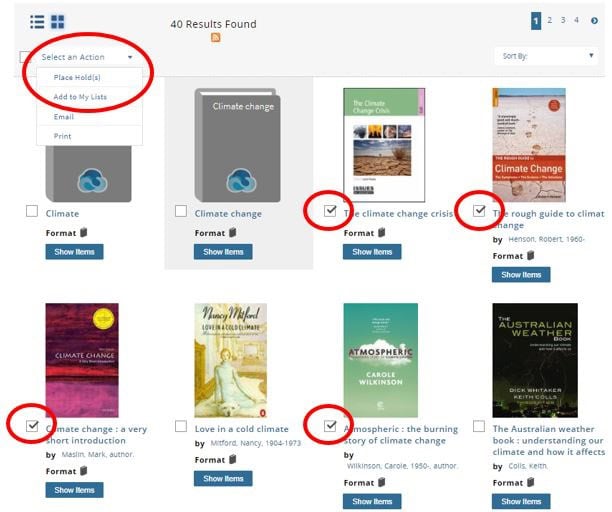
Search the catalogue and click the tick box beside the items in the search results you want to save to a list. Then use the Select an Action drop-down menu at the top of the search results and select Add to My Lists.
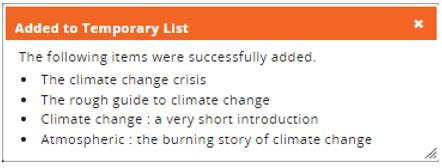
A confirmation message will be displayed listing the items successfully added to the temporary list.
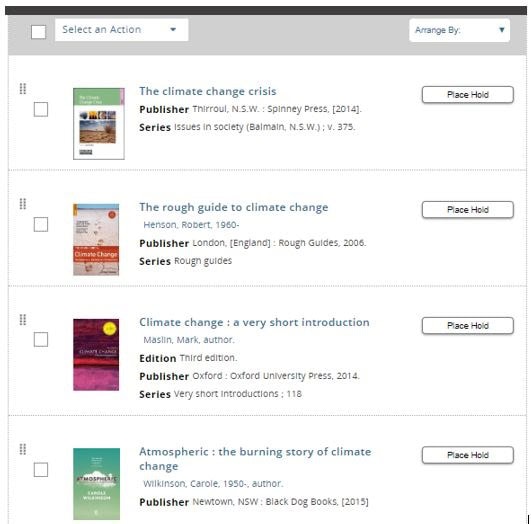
Click My Lists at the top right-hand corner of the screen to see your temporary and saved list/s. Any items saved to a list will appear on the right-hand side.
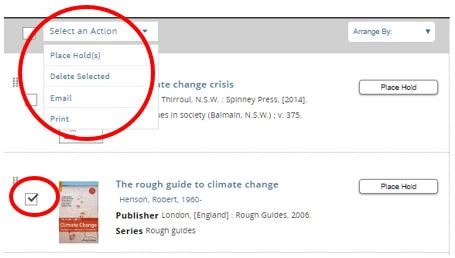
You can use the Select an Action drop-down menu at the top of the search results to Print, Email or Delete Selected items from your list. Select the items by ticking the boxes beside the relevant items.
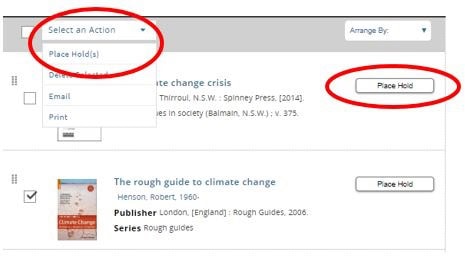
You can also use the Select an Action drop-down menu to Place Hold(s) on selected items. Alternatively, there is a Place Hold button beside each item.
Saving a temporary list
Click My Lists at the top of the screen and log in (if you aren’t already logged in).
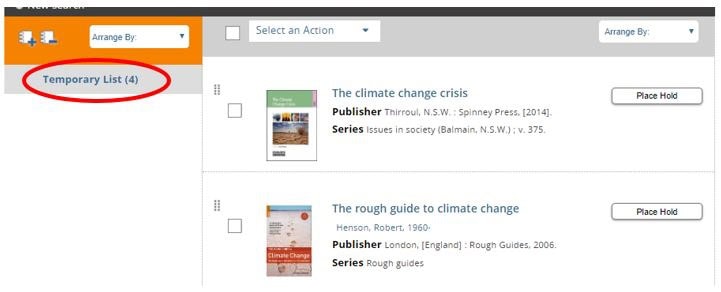
You will see any items recently added to your Temporary List.
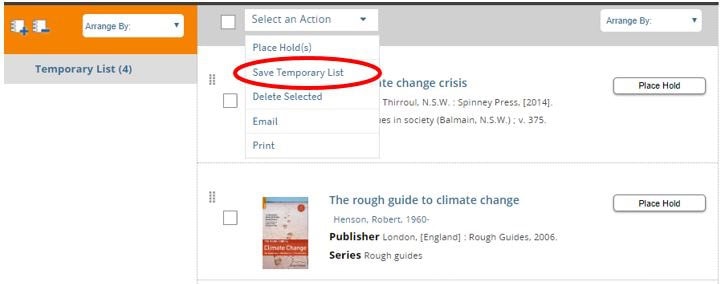
Then using the Select an Action drop-down menu click on Save Temporary List.
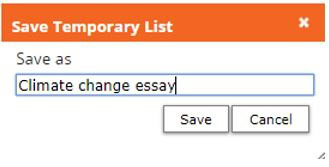
Enter the name for your list and click Save button.
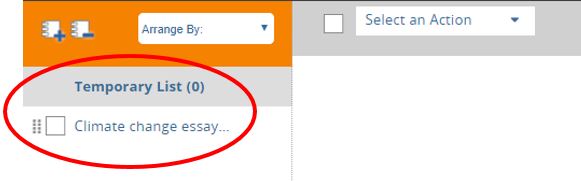
Your temporary list will now be empty, and on the left-hand side your saved list name appears underneath.
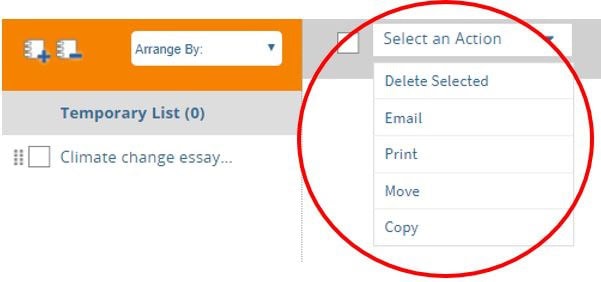
Click the name of the saved list to see what items the list contains. The items will be displayed on the right hand-side.
How to create a saved list
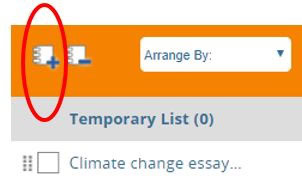
At the top left-hand corner of the screen is two book icons. Click on the book icon with a plus sign to create a new saved list.
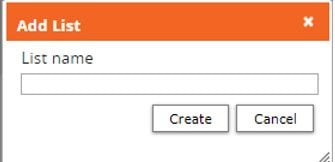
Enter the name for your list and click Create button.
There is no limit to the number of saved lists you can have. You cannot save more than 121 items to a list.
How to delete a saved list
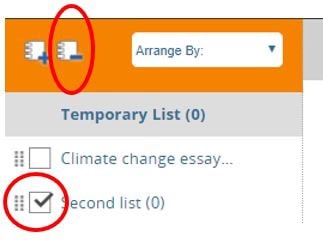
Click the tick box beside the list/s you want to delete. Click on the book icon with a minus sign to delete the selected list/s.
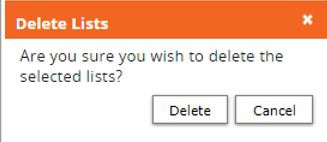
Click the Delete button if you are sure you want to delete the selected list/s.
